Get started
Install Arch Studio.
Choose your assistant and how you want to use Architecture Studio.
Claude · App · Open-source plugin
Claude · App · MCP
First installation
Add Arch Studio to Claude.
Create a custom connector from Customize, then sign in to Arch Studio or create your account.
Open Customize → Connectors
In Claude, open Customize from the sidebar, select Connectors, then choose Add and open Add custom connector.
Enter the Arch Studio details
Use Architecture Studio as the connector name and paste the server URL below. Wait for Claude to find the server and its OAuth configuration. Leave advanced client credentials empty; use the detected OAuth flow.
Connection name
Architecture StudioMCP server URL
https://mcp.architecturestudio.ai/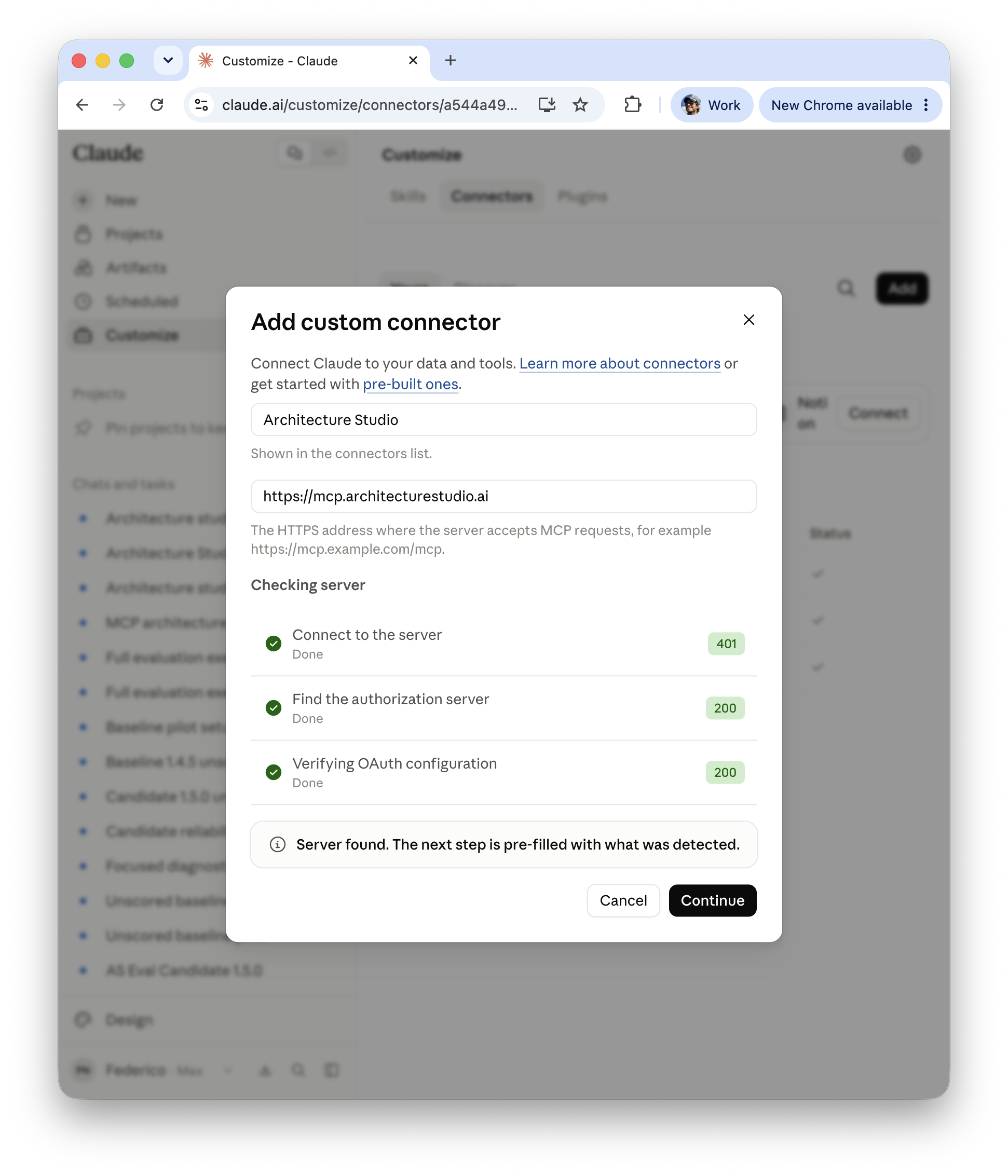
Claude · Customize → Connectors → Add · Open full size ↗ Continue and authorize
Choose Continue. Follow the detected OAuth setup, then sign in to Arch Studio and approve access when prompted.
Use Arch Studio in a conversation
Enable Architecture Studio in your conversation and ask “Norma, help me…” followed by your task. Ask Claude to call as_status to check the connected release.
Website sign-in does not connect your assistant. MCP activity reflects a dated successful authenticated discovery exchange, not continuous connection health.
The MCP verifies its source resources before delivery. The assistant reads the complete instructions at one release pin; it need not reconstruct or hash that instruction text to use a workflow. Required artifact hashes and result checks still apply. There is no Arch Studio runner installation step in signup or first use.
Go to my account to view your MCP connections.
Claude · App · Plugin
First installation
Install the Arch Studio plugin in Claude.
Add the public Arch Studio marketplace, then install the Architecture Studio plugin. No Arch Studio account is required.
Open Customize → Plugins
Choose Discover, open Add, then select Add marketplace.
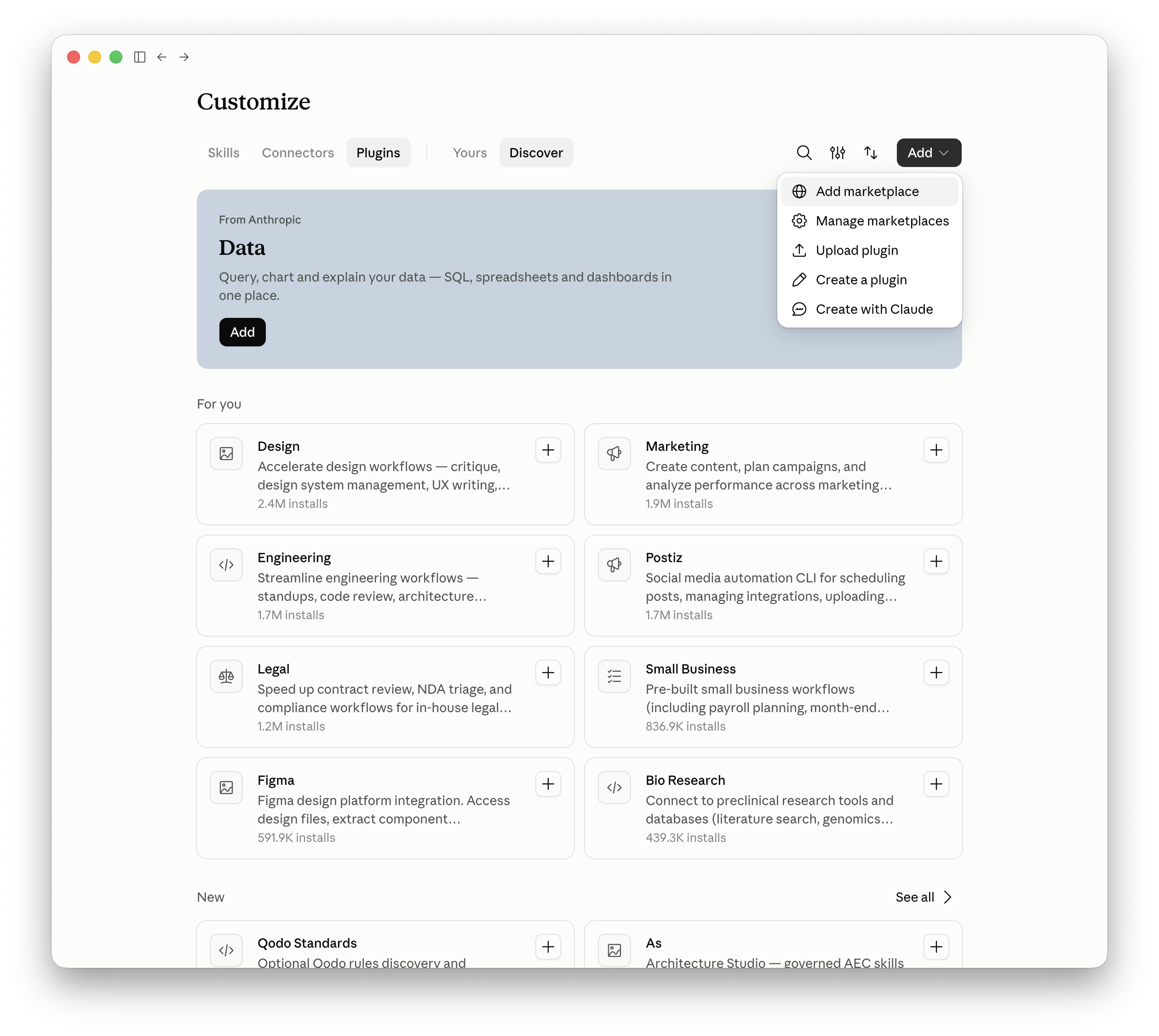
Claude · Customize → Plugins → Add → Add marketplace · Open full size ↗ Add from a repository
In Add marketplace, choose Add from a repository.
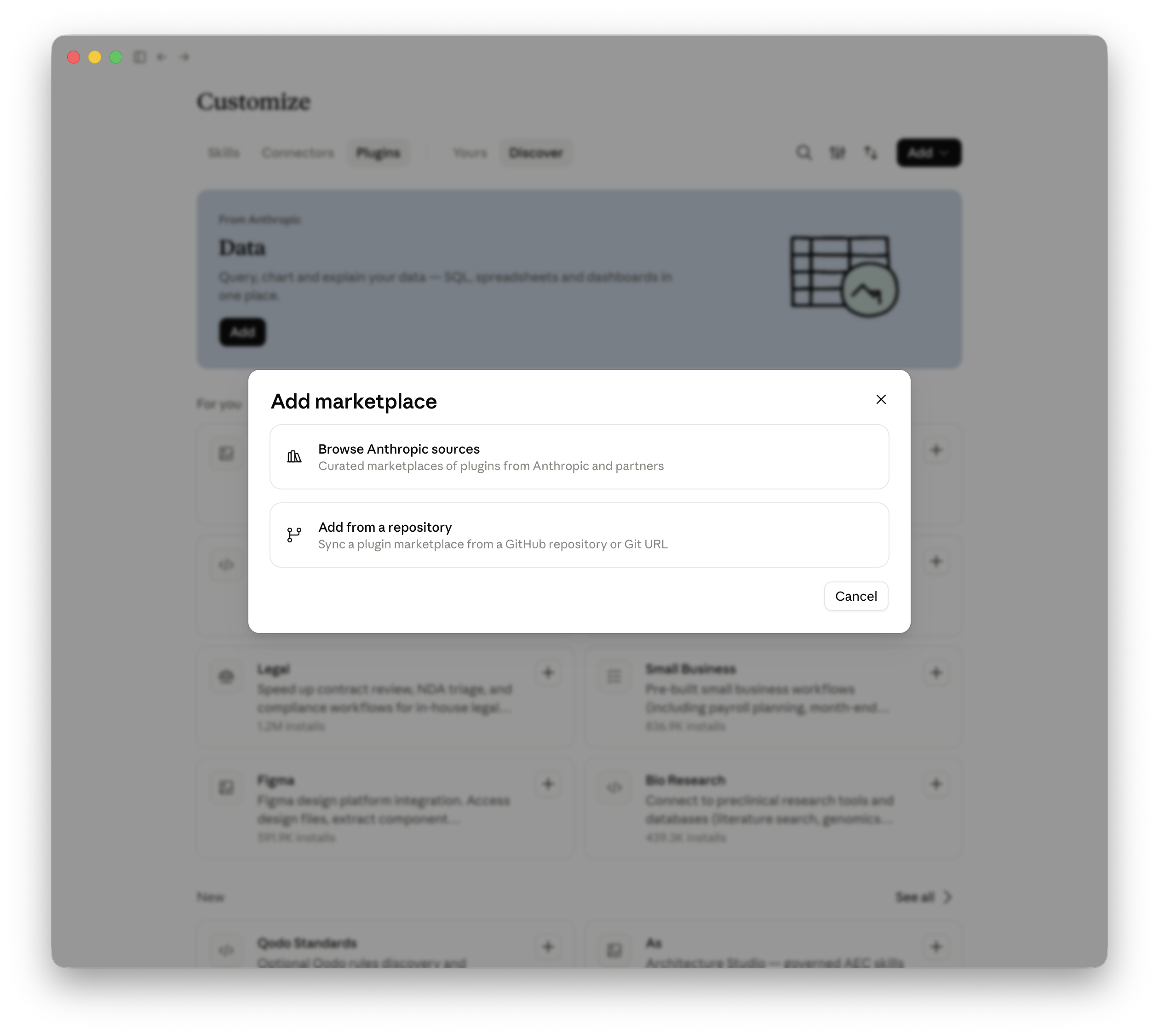
Claude · Add from a repository · Open full size ↗ Paste the marketplace URL and sync
Paste the repository URL below. Choose whether to sync automatically, then select Sync.
Repository URL
https://github.com/AlpacaLabsLLC/skills-for-architects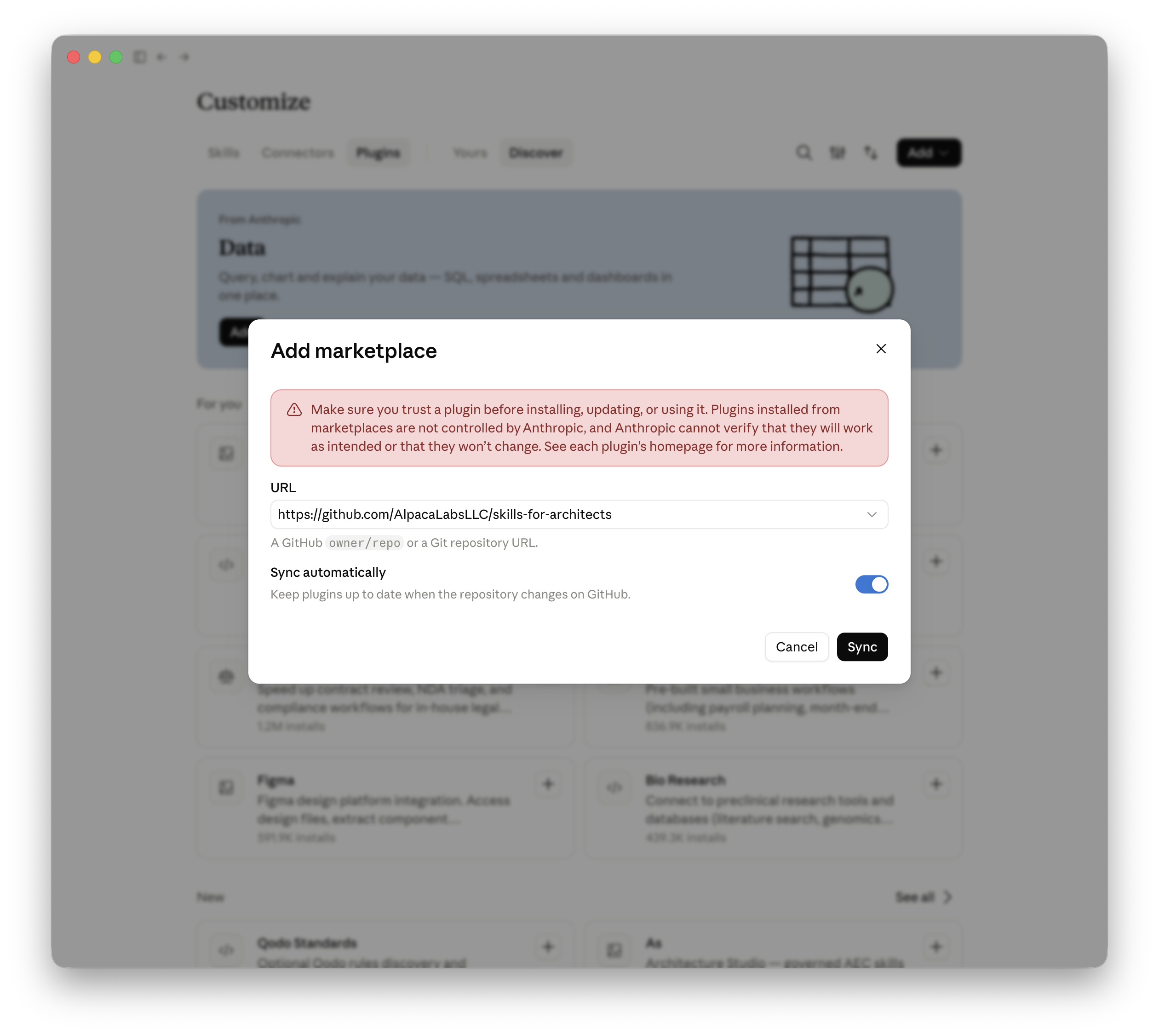
Claude · Enter the repository URL → Sync · Open full size ↗ Install Architecture Studio
After syncing, find As (Architecture Studio) in Plugins → Discover. Select the plus button on its card and complete the installation.
Start your studio
Start a new conversation and enter the command below. Arch Studio should show the studio menu.
Studio command
/as:studio
Local plugins cannot be verified remotely.
Claude · Claude Code · MCP
First installation
Connect Claude Code through MCP.
Add Arch Studio from your terminal, then sign in to Arch Studio or create your account.
Install Claude Code.
Use the installer for your system. If already installed, continue to the next step.
macOS / Linux
curl -fsSL https://claude.ai/install.sh | bashWindows PowerShell
irm https://claude.ai/install.ps1 | iexAdd the Arch Studio server.
Run this in your terminal. User scope makes Arch Studio available across your projects on this machine.
Terminal
claude mcp add --transport http --scope user architecture-studio https://mcp.architecturestudio.ai/Open Claude Code and authorize Arch Studio.
Start Claude Code from your project folder. Enter /mcp in the conversation, select architecture-studio, and follow the authentication flow. Sign in to Arch Studio in your browser and approve access.
Terminal
claudeInside Claude Code
/mcpCheck the connection and start working.
Return to Claude Code and check that Arch Studio is connected in /mcp. Ask Claude to call as_status to confirm the connected release, then describe your task.
Authorize through the host’s OAuth flow. CLI registrations may appear as Other in dated MCP activity.
The MCP verifies its source resources before delivery. The assistant reads the complete instructions at one release pin; it need not reconstruct or hash that instruction text to use a workflow. Required artifact hashes and result checks still apply. There is no Arch Studio runner installation step in signup or first use.
Go to my account to view your MCP connections.
Claude · Claude Code · Plugin
First installation
Install the Arch Studio plugin in Claude Code.
The local plugin is free and does not require an Arch Studio account. Installing it does not verify a hosted account connection.
Install Claude Code.
Use the installer for your system. If already installed, continue to the next step.
macOS / Linux
curl -fsSL https://claude.ai/install.sh | bashWindows PowerShell
irm https://claude.ai/install.ps1 | iexAdd the Arch Studio plugin.
Run these commands in your terminal, then start a fresh session.
Plugin commands
claude plugin marketplace add AlpacaLabsLLC/skills-for-architects
claude plugin install as@skills-for-architects
Open your project folder.
Sign in with your firm’s account and review the folder where you want to work.
Start command
claudeStart your studio.
Choose to create a studio, open an existing one, or try an example.
Studio command
/as:studioCheck your plugin installation.
List installed plugins in your terminal.
Plugin list command
claude plugin list
Local plugins cannot be verified remotely.
ChatGPT · App · MCP
First installation
Add Arch Studio to ChatGPT.
Create a new connection from Plugins, then sign in to Arch Studio or create your account.
Open Plugins and add a connection
In ChatGPT, open Plugins from the sidebar. Select the plus button to open New Plugin.
Enter the Arch Studio details
Name the plugin Architecture Studio. Under Connection, choose Server URL and paste the address below. Leave Authentication set to OAuth. The icon and description are optional. Leave manual OAuth client credentials empty.
Connection name
Architecture StudioMCP server URL
https://mcp.architecturestudio.ai/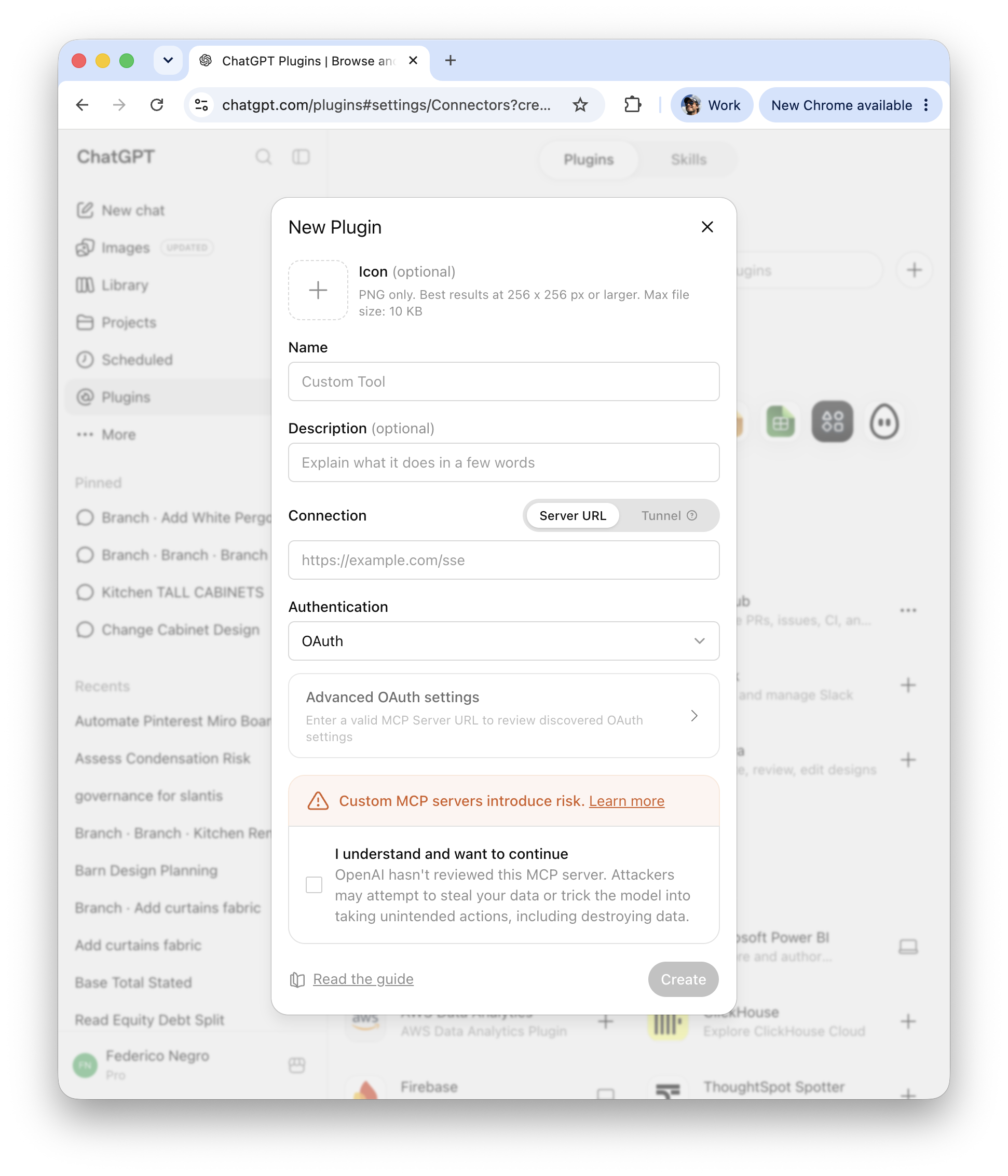
ChatGPT · Plugins → + → New Plugin · Open full size ↗ Review and create
Review ChatGPT’s custom MCP notice and select its acknowledgment if you want to continue. Choose Create.
Sign in to Arch Studio
Complete the Arch Studio sign-in and access approval when prompted, then return to ChatGPT.
Use Arch Studio in a conversation
Enable Arch Studio in a new conversation and ask “Norma, help me…” followed by your task. Ask ChatGPT to call as_status to check the connected release.
Use a setup prompt instead
Paste this into ChatGPT. Your assistant handles supported steps and asks for sign-in or approval when needed.
Install and start Architecture Studio in this ChatGPT Work session. Arch Studio supplies architecture workflows through a hosted MCP; my existing assistant uses those workflows, not a separate chatbot. Use this endpoint: https://mcp.architecturestudio.ai/

First identify this host and inspect its available connector-management capabilities. Reuse an existing connection to this exact endpoint; verify its tools before starting another authorization. Add a connection only if none exists. Do not add duplicates or install the public local plugin as a substitute. Keep any existing local plugin; removing or disabling it requires separate approval after the hosted path is verified.

Identify whether ChatGPT Work is running in a desktop app or on the web. Desktop MCP management and shared Codex configuration may be used only when actually available on this machine. ChatGPT web does not read local Codex configuration: use the apps or plugins available to this workspace and their supported setup flow. Do not assume terminal or local file access. If this host cannot add a connection, explain the missing capability and give the shortest supported manual fallback.

Use normal OAuth discovery and browser sign-in; leave advanced client credentials empty. Let me enter credentials and approve access myself; never request secrets or bearer tokens in chat. Use a localhost or loopback callback only when this client owns a live listener. Keep that login process alive through its callback and use a browser on the same machine that can reach it. Never send a remote embedded browser to another machine's localhost. If no reachable listener exists, use the host's supported remote authorization flow or explain the required local-browser handoff. Do not treat an unreachable loopback callback as success. If I deny or cancel authorization, stop setup without retrying or making further configuration changes; report any connection entry already added. If the account or workspace differs from the one I intended, stop and let me choose the correct account through the provider. If authorization expires, explain that the connection is unverified and offer a fresh flow; do not reuse the expired callback or start a retry loop.

For an existing connection or after authorization, refresh/discover tools if supported and retry in this session. Request a fresh task only if tools still cannot load. Do not assume connector toggles are isolated per conversation. Verify by calling as_status and recording its sourceDigest. Discover the actual catalog: retrieve as_norma when available and all its required resources at that same digest, using returned URIs and advertised page bounds until complete. Stop on a digest mismatch or missing required resource. If this release lacks Norma, report that and use the available as_studio entry point; do not claim the coordinator is installed. Report only the release actually retrieved; instruction delivery is not task completion. Website sign-in or previous connection activity alone does not verify current tool access.

Give one short plain-text welcome, without ASCII art, legal boilerplate or repeated questions. When Norma is available, say “Say ‘Norma, help me…’ or ask naturally for architecture and project work.” Do not promise a universal @norma, /norma or $norma command. Continue any task or studio choice I already supplied; otherwise offer use without setup, open existing, create a studio, or an example in one concise gate. Use as_studio for the selected studio administration action. Request folder access only when needed; if unavailable, explain what cannot proceed and offer standalone work where feasible. Opening an existing studio does not authorize creating one. Preview studio/project creation and obtain approval before writing; never initialize implicitly. Standalone sample requests do not require project selection or library adoption.

If I ask to make Arch Studio the default, follow Norma's preference workflow: select an actual host-supported project or user instruction mechanism, show the exact removable-block diff and obtain approval before editing. If persistence is unavailable, give session guidance. If offering a new default preference, ask exactly “Would you like this assistant to use Architecture Studio by default for architecture and project work?” once, without interrupting an already supplied task. No or cancel writes nothing; do not repeat an answered choice.

After useful work, give a concise completion report naming source data, Arch Studio instructions or helpers used, what the host executed, output locations, checks performed, unresolved items and any canonical writes with readback. Distinguish full, partial, blocked and instructions-only outcomes. A standalone export is not a canonical save. End with one relevant “Use Norma…” next action when that coordinator is available.
A first task
Norma, prepare three standalone sample furniture and lighting specification sheets using sourced products and the available Architecture Studio workflows. Do not add them to a project or library.Website sign-in does not connect your assistant. MCP activity reflects a dated successful authenticated discovery exchange, not continuous connection health.
The MCP verifies its source resources before delivery. The assistant reads the complete instructions at one release pin; it need not reconstruct or hash that instruction text to use a workflow. Required artifact hashes and result checks still apply. There is no Arch Studio runner installation step in signup or first use.
Codex app: check the same account’s shared MCP configuration first. If needed, use the Codex CLI MCP instructions on this page, authorize Arch Studio and reopen the app. ChatGPT web does not read local Codex configuration.
Go to my account to view your MCP connections.
ChatGPT · App · Plugin
First installation
Install the Arch Studio plugin in ChatGPT.
Add the public Arch Studio marketplace, then install the Architecture Studio plugin. No Arch Studio account is required.
Open Plugins → Add
Open Plugins in ChatGPT. Choose Add, then Add a marketplace.
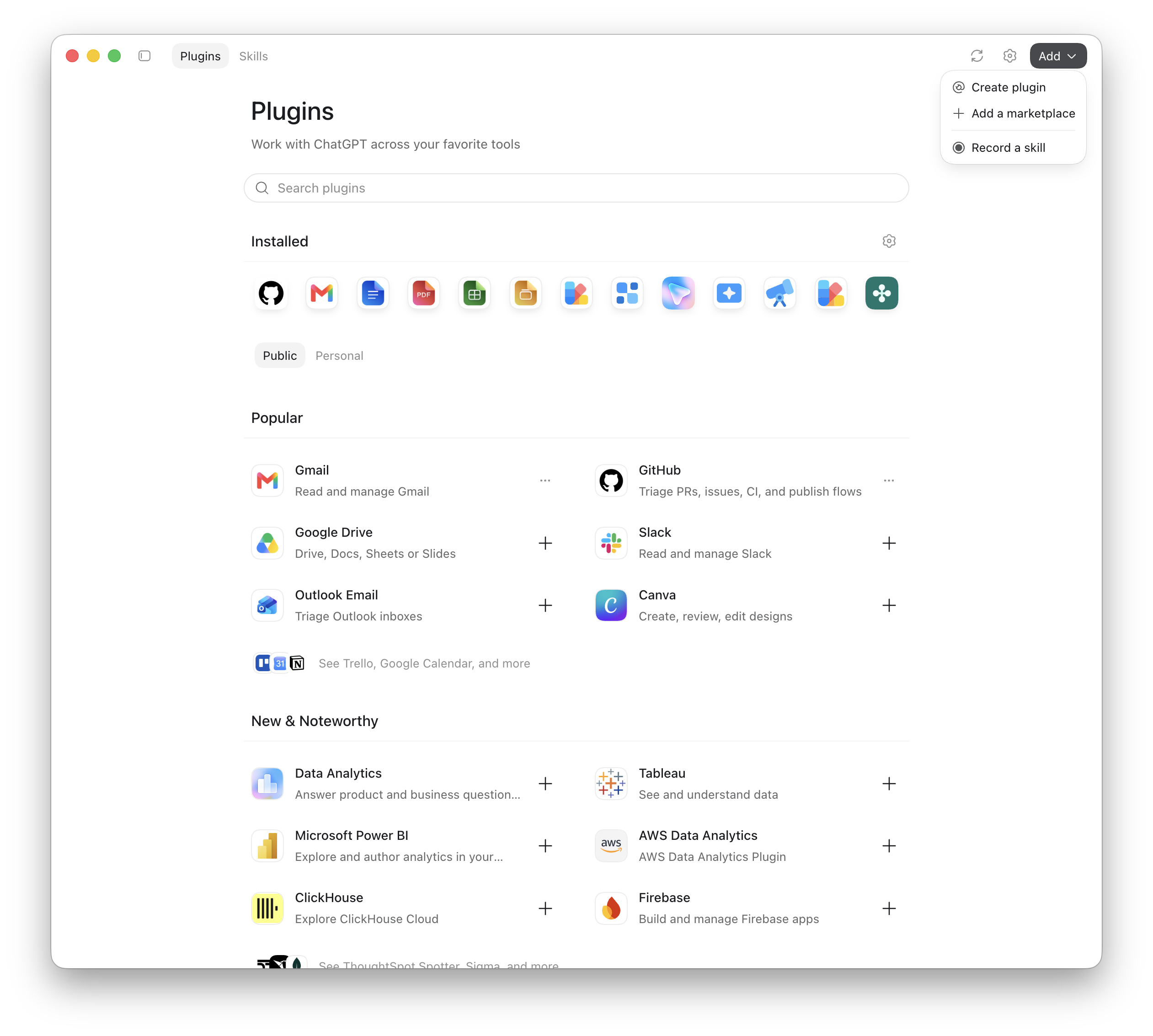
ChatGPT · Plugins → Add → Add a marketplace · Open full size ↗ Add the Arch Studio repository
Paste the repository URL below into Source. Leave the optional Git ref and Sparse paths fields blank for the default repository, then choose Add marketplace.
Repository URL
https://github.com/AlpacaLabsLLC/skills-for-architects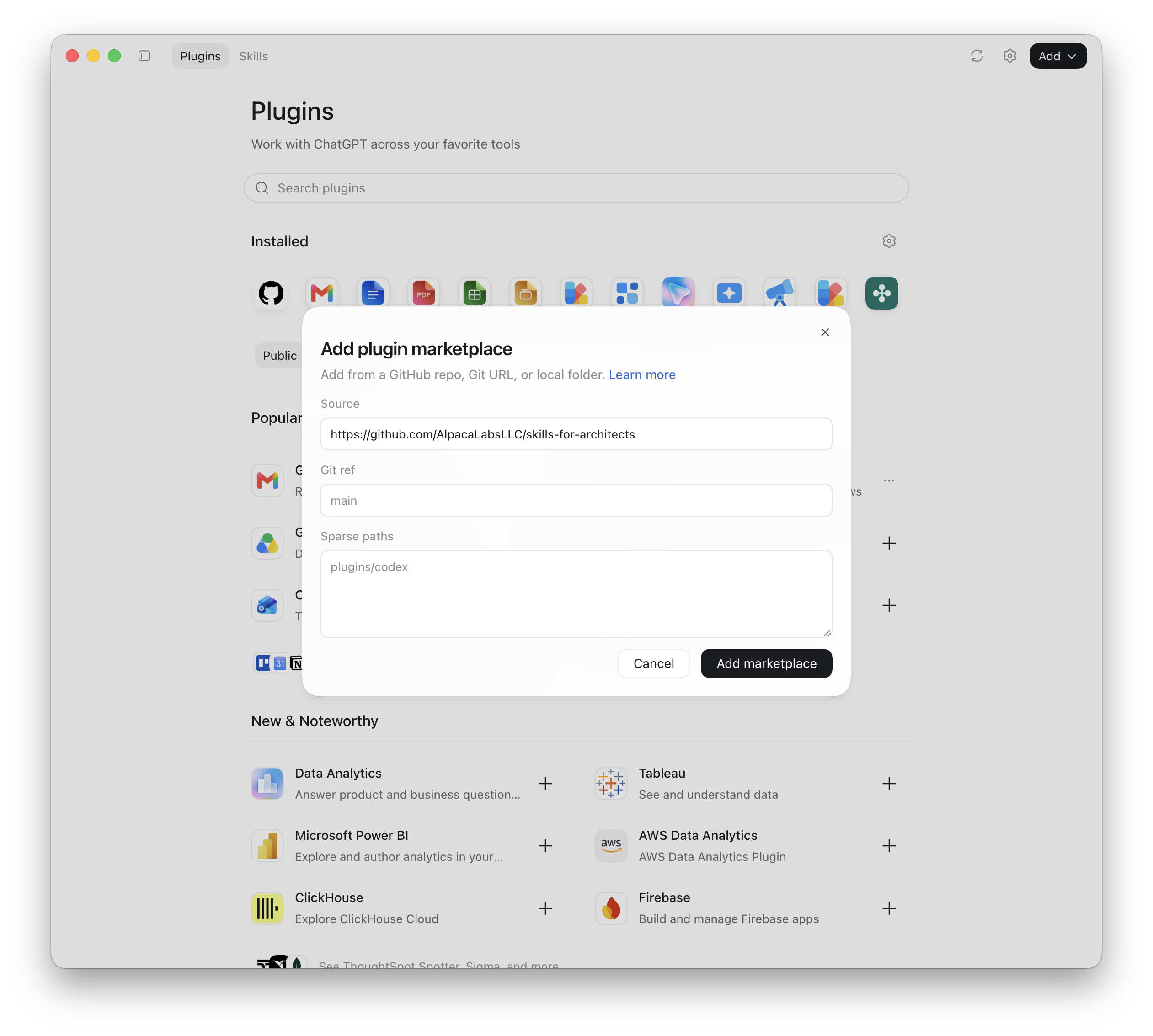
ChatGPT · Enter the repository source → Add marketplace · Open full size ↗ Install Architecture Studio
Open Personal in Plugins, find Arch Studio in the skills-for-architects marketplace, and add the plugin. Complete any installation confirmation.
Start your studio
Start a new conversation with Arch Studio enabled and ask it to open the Architecture Studio menu.
Local plugins cannot be verified remotely.
ChatGPT · Codex CLI · MCP
First installation
Connect Codex CLI through MCP.
Add Arch Studio from your terminal, then sign in to Arch Studio or create your account.
Install Codex CLI.
Use the installer for your system. If already installed, continue to the next step.
macOS / Linux
curl -fsSL https://chatgpt.com/codex/install.sh | shWindows PowerShell
powershell -ExecutionPolicy ByPass -c "irm https://chatgpt.com/codex/install.ps1 | iex"Add the Arch Studio server.
Run this in your terminal to register the Arch Studio endpoint with Codex.
Terminal
codex mcp add architecture-studio --url https://mcp.architecturestudio.ai/Sign in and authorize Arch Studio.
Run the login command, then follow the browser sign-in to Arch Studio and approve access. If the add command already completed OAuth, continue to the next step.
Terminal
codex mcp login architecture-studioOpen Codex and check the connection.
Start a fresh Codex session from your project folder. Enter /mcp to see active servers, then ask Codex to call as_status to confirm the connected Arch Studio release. You can now describe your task.
Terminal
codexInside Codex
/mcp
Authorize through the host’s OAuth flow. CLI registrations may appear as Other in dated MCP activity.
The MCP verifies its source resources before delivery. The assistant reads the complete instructions at one release pin; it need not reconstruct or hash that instruction text to use a workflow. Required artifact hashes and result checks still apply. There is no Arch Studio runner installation step in signup or first use.
Go to my account to view your MCP connections.
ChatGPT · Codex CLI · Plugin
First installation
Install the Arch Studio plugin in Codex CLI.
The local plugin is free and does not require an Arch Studio account. Installing it does not verify a hosted account connection.
Install Codex CLI.
Use the installer for your system. If already installed, continue to the next step.
macOS / Linux
curl -fsSL https://chatgpt.com/codex/install.sh | shWindows PowerShell
powershell -ExecutionPolicy ByPass -c "irm https://chatgpt.com/codex/install.ps1 | iex"Add the Arch Studio plugin.
Run these commands in your terminal, then start a fresh session.
Plugin commands
codex plugin marketplace add AlpacaLabsLLC/skills-for-architects
codex plugin add as@skills-for-architects
Open your project folder.
Sign in with your firm’s account and review the folder where you want to work.
Start command
codexStart your studio.
Choose to create a studio, open an existing one, or try an example.
Studio command
$studioCheck your plugin installation.
List installed plugins in your terminal.
Plugin list command
codex plugin list
Local plugins cannot be verified remotely.
Connection trouble
Read the known issues and tested workarounds if authorization fails or Arch Studio tools are missing.